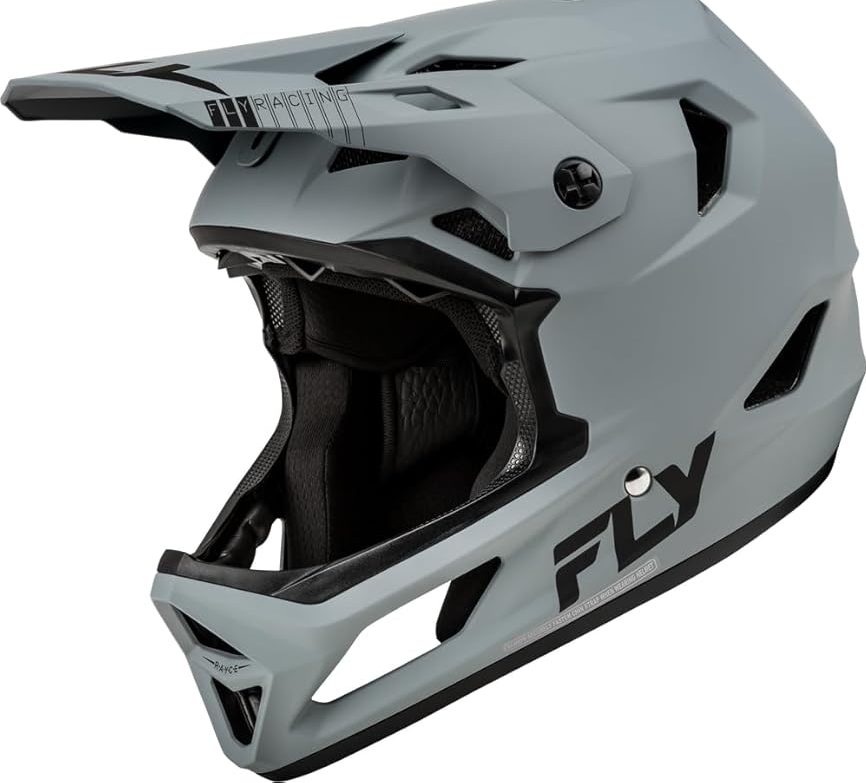

When I first started playing MX Bikes, I loved how realistic the game felt. The bike handling, dirt physics, and track designs made it feel close to real motocross. But after a few hours of riding, I noticed something missing. My rider looked too basic compared to the custom bikes and gear I saw from other players.
That is when I started exploring MX Bikes mods. The first thing I wanted to change was my helmet. A custom helmet made the rider feel more personal, almost like creating my own virtual motocross setup. It reminded me of watching riders at local tracks in California or Texas where everyone has their own gear style and color combinations.
If you are wondering how to download helmets in MX Bikes, the process is easier than it looks. You mainly need to find a compatible helmet mod, download the files, place them in the correct MX Bikes folder, and select the helmet inside the game.
I made a few mistakes when I installed my first helmet mod. I placed files in the wrong folder, downloaded an outdated version, and spent time wondering why nothing appeared. Once I understood how MX Bikes organizes custom content, installing helmets became a simple process.
This guide explains the steps I use today, along with tips that can help new players avoid common problems.
How to Download Helmets in MX Bikes?
Downloading helmets in MX Bikes requires finding a custom helmet mod and installing its files into the correct game directory. Most helmet mods include custom models, textures, or paint files created by the MX Bikes community.
The game itself gives players a strong motocross experience, but community-made content adds more freedom. You can customize your rider with different helmets, gear sets, bikes, and tracks.
When I first discovered helmet mods, I was surprised by how much they changed the feeling of the game. A small visual upgrade made practice sessions feel more realistic because my rider looked closer to an actual motocross racer.
What Are MX Bikes Helmet Mods?
MX Bikes helmet mods are custom files created by players and mod developers. These files change the appearance of your rider’s helmet without changing the core gameplay.
Most helmet mods focus on visual improvements such as:
- New helmet designs
- Custom colors
- Realistic textures
- Brand-inspired graphics
- Racing-style patterns
- Team-style appearances
The MX Bikes community is very active, especially among PC players. Many creators share custom content through forums, community pages, and private groups.
I have seen players recreate styles inspired by real motocross equipment from brands like Fox Racing, Bell, Troy Lee Designs, and Alpinestars. These designs make the simulator feel more connected to real-world motocross.
Where Can You Find MX Bikes Helmet Downloads?
Finding a good helmet mod is the first step. I learned that not every download source is equally reliable, so choosing carefully can save you from broken files or confusing installations.
Most players find MX Bikes helmets through community-driven sources. These places usually have comments, update information, and installation instructions from creators.
Common places to look include:
- MX Bikes community forums
- Mod sharing websites
- Creator pages
- Discord communities
- Player groups
Before downloading any helmet file, I usually check a few things first:
- When the mod was uploaded
- Whether other players report problems
- If installation instructions are included
- Whether the file matches my game version
A few extra seconds of checking can prevent wasted time later.
What Files Are Included in MX Bikes Helmet Mods?
Helmet downloads usually come as compressed folders. Inside, you may find several different files depending on how the creator built the mod.
Common files include:
- Helmet model files
- Texture files
- Paint files
- Skin files
- Template files
- Installation notes
Some creators include everything needed in one package. Others provide only the helmet skin and require an existing helmet model.
When I downloaded my first helmet, I assumed every file worked the same way. That was not true. Some helmets were complete packages, while others needed additional files from another download.
Reading the instructions inside the folder saved me a lot of frustration.
Step-by-Step Guide to Install Helmets in MX Bikes
Once you have the helmet file, installation is usually straightforward. The most important part is placing the files in the correct location.
Step 1: Download the Helmet Mod
Start by downloading the helmet file from a trusted source. Most mods come as ZIP or RAR files, so you will need a program like WinRAR or 7-Zip to open them.
Before extracting anything, I recommend creating a simple folder on your computer where you keep your MX Bikes downloads. This makes it easier to find files later.
A clean organization system helps a lot once you start collecting multiple mods.
Step 2: Extract the Downloaded Files
After downloading the helmet, right-click the compressed file and choose the extraction option.
Inside the extracted folder, look for:
- Readme instructions
- Helmet files
- Texture files
- Folder names suggested by the creator
Do not immediately move random files around. I made that mistake early on, and it created unnecessary confusion.
Step 3: Find Your MX Bikes Folder
MX Bikes stores custom content inside the PiBoSo folder structure.
The common location is usually:
Documents → PiBoSo → MX Bikes
Inside this area, you will find folders used for different types of custom content.
The exact location can vary depending on your setup, so checking the included instructions is always a good idea.
Step 4: Add the Helmet Files
Move the helmet files into the correct folder according to the mod instructions.
Before adding new files, I recommend creating a backup of your existing MX Bikes folder. It only takes a minute, and it makes fixing problems much easier.
My current habit is simple. I install one mod at a time and test it before adding another. It feels slower, but it saves hours when something goes wrong.
How to Use Downloaded Helmets in MX Bikes?
After installing a helmet mod, the next step is checking if it works correctly inside the game. This part is usually quick, but it is where many new players get confused because the helmet does not always appear automatically.
When I installed my first custom helmet, I expected it to show up immediately when I opened MX Bikes. Instead, I had to go into the rider setup menu and select the new option manually. It was a small step, but I did not know about it at the time.
Once you understand where to look, switching between helmets becomes easy.
Open MX Bikes Rider Settings
Start MX Bikes normally and enter the rider customization area. This is where you can change your rider appearance, gear, and available helmet options.
If the helmet was installed correctly, it should appear in the available selections. You can preview different options before starting a race or practice session.
I usually test new helmets in a practice session first. It gives me a chance to check whether the textures load correctly before using them during an online ride.
Check Helmet Textures and Details
A helmet model may load correctly but still have texture problems. Sometimes the shape appears, but the colors or graphics look missing.
Common signs of a texture problem include:
- A plain white helmet
- Missing graphics
- Strange colors
- Blurry designs
- Invisible parts
When this happened to me, the problem was usually a missing texture file or an incorrect folder location. Moving the files again or reinstalling the mod usually solved it.
Test the Helmet Before Adding More Mods
One habit that helped me avoid problems was installing one mod at a time. It is tempting to download ten helmets, five bikes, and several gear packs at once because the options are exciting.
I learned the hard way that too many changes at once make troubleshooting much harder.
A simple process works best:
- Install one helmet
- Open MX Bikes
- Check the result
- Keep it if everything works
This method saves time and keeps your game files organized.
How to Download and Install Helmet Skins in MX Bikes?
Helmet skins are slightly different from complete helmet mods. Instead of adding a completely new helmet model, a skin changes the design, colors, and graphics of an existing helmet.
Many players use skins because they allow more customization without replacing the entire helmet.
What Are MX Bikes Helmet Skins?
A helmet skin is a custom texture file that changes the visual appearance of a helmet.
Players use skins to create designs such as:
- Race-inspired graphics
- Custom color combinations
- Personal logos
- Number plates
- Unique rider styles
I enjoy helmet skins because they make the game feel more personal. Even a simple color change can make your rider stand out during a long online session.
Using Helmet Templates
Some creators provide helmet templates that allow players to design their own graphics. These templates usually work with image editing programs like Photoshop or GIMP.
The basic process usually involves:
- Downloading a helmet template.
- Editing colors and designs.
- Saving the image correctly.
- Importing it into MX Bikes.
Creating your own helmet design takes more effort, but it is rewarding. I remember spending an evening testing different colors and patterns until I found a style I liked.
It was not perfect, but that was part of the fun.
Common Problems When Installing MX Bikes Helmets
Even though helmet installation is simple, problems can happen. Most issues come from incorrect folders, missing files, or compatibility problems.
I have experienced several of these issues myself, especially when trying older mods with newer versions of the game.
Helmet Does Not Appear in the Game
This is one of the most common problems.
Possible causes include:
- Files placed in the wrong folder
- Missing required files
- Incorrect installation steps
- Mod compatibility issues
The first thing I check is the folder location. Many installation problems are caused by putting files one level too deep.
For example, instead of:
MX Bikes → Correct Folder → Helmet Files
you may accidentally create:
MX Bikes → Correct Folder → Download Folder → Helmet Files
The game cannot always find files hidden inside extra folders.
Helmet Appears Without Graphics
Sometimes the helmet loads, but the design is missing. This usually means the texture files were not installed correctly.
Possible solutions:
- Recheck the extracted folder
- Move texture files again
- Read the creator instructions
- Download the file again
I once installed a helmet that looked completely white. The model worked, but the texture file was missing. After reinstalling the complete package, everything appeared correctly.
MX Bikes Crashes After Adding a Mod
A crash does not always mean the helmet mod is bad. Sometimes another installed file creates a conflict.
If MX Bikes crashes after adding a helmet:
- Remove the newest mod
- Restart the game
- Test again
- Add files one at a time
This is why keeping backups is important.
How to Organize MX Bikes Helmet Mods?
Once you start downloading custom content, your mod folder can become messy very quickly. A little organization helps you find files and fix problems faster.
I learned this after having dozens of helmets mixed with bikes, tracks, and gear files. Searching through everything became annoying.
A simple folder system works well:
Create Separate Mod Categories
You can organize files into folders such as:
- Helmets
- Bikes
- Gear
- Tracks
- Skins
- Backups
This makes future updates much easier.
Keep Original Files Safe
Before installing a large number of mods, create a backup copy of your working MX Bikes folder.
This gives you an easy way to restore your game if something goes wrong.
I usually create a backup before major changes. It takes only a few minutes and gives peace of mind.
Remove Mods You Do Not Use
It is easy to collect hundreds of files because the community creates so much content. However, keeping unused mods can make your folders harder to manage.
Every few months, I review my downloaded content and remove files I no longer use.
A clean folder keeps everything simple.
Are MX Bikes Helmet Downloads Safe?
Many players worry about downloading community-made content. That is a fair concern because not every file on the internet is trustworthy.
Most MX Bikes helmet mods are harmless when downloaded from reliable community sources. The main risk comes from unknown websites or files that include unnecessary programs.
Tips for Safer Downloads
Before opening a file, I recommend:
- Download from known MX Bikes communities
- Check user comments
- Avoid suspicious executable files
- Scan downloads with antivirus software
- Read installation instructions
A helmet mod should normally contain game files, not random programs.
If a download asks you to install unknown software, I would skip it.
My Experience With MX Bikes Helmet Mods
When I first started customizing MX Bikes, I thought installing helmets would be complicated. I expected confusing folders and technical problems. After a little practice, I realized the process was much easier than I imagined.
The best part is how much personality these small changes add to the game. A custom helmet does not change the physics or gameplay, but it makes every ride feel more like your own.
Whether you are practicing tracks at home in Texas, racing online with friends in California, or simply enjoying motocross simulation on a weekend evening, custom helmets make the experience more enjoyable.
The key is simple. Download from trusted sources, install files carefully, and test one mod at a time.
Frequently Asked Questions
How to download helmets in MX Bikes?
To download helmets in MX Bikes, find a compatible helmet mod, extract the files, place them in the correct MX Bikes folder, and select the helmet from your rider customization menu.
Where do MX Bikes helmet mods go?
Most helmet mods go inside your MX Bikes personal folder under the PiBoSo directory. Always check the creator’s instructions because file locations can vary.
Why is my MX Bikes helmet not showing?
Your helmet may not appear because files are in the wrong folder, required textures are missing, or the mod does not match your game version.
Can I make my own helmet in MX Bikes?
Yes, you can create custom helmets using templates and image editing programs like Photoshop or GIMP. Many players design their own textures.
Are MX Bikes helmet mods free?
Many community-made helmet mods are free to download. Always check the creator’s rules because some custom content may have specific usage terms.

Olivia
Writer at Helmet Today, covering helmet reviews, fit and riding safety.